I have been working on Wizzle app development for over two years part time teamed up with a talented J2EE architect Robert Rudics from Switzerland with his team. It was all about bringing up a great set of features for people to interact with friends and other users of Wizzle nearby. Wizzle enables users to instantly chat, call, connect (message, image, video) with people nearby without needing even a sign-up. All you need is to launch the app and see people nearby. And you could fill up your profile later may be to explore more and more friends with Wizzle network. With this nice app you could message, send your location, send images, send instantly recorded videos and call them for completely free without any advertising. Travel mode is a cool feature with Wizzle where you search for friends in a all new way of changing your location on a map. And it’s really cool that it featured in freestyle.ch 2012 event with Big sponsors like Redbul and Zurich.

avail_on_app_store

Wizzle


App screen shots


Posted by: Tharindu | September 3, 2012

Elephanti iPhone app for Smarter Shopping

Elephanti iPhone App has been a great effort of a small team of developers, designers [more importantly close friends] located in Colombo, Sri Lanka. Mr. Lalin Michael Jinasena [Founder, CEO of Elephanti] has come up with this revolutionized idea and worked with the team in making people shop smarter with Elephanti. It has been an entertaining and exciting one and half years of developing this fantastic app. And finally with more exciting features yet to come, Elephanti App is now available for users on Apple AppStore. I feel really lucky to work as an iPhone developer on such a great app like Elephanti [Initially code named Lalinks] with our team. As the name implies Elephant[i] it’s really really big when it comes to features it offers to users and super [i]Interesting.

Elephanti App with its web site connects people to shops, people, offers in a smarter way on the go, because of that it creates a great retail media network among its users and merchants. For example, Elephanti is Smart enough to let you know that you are moving closer by an Offer that matches your Interests. With Elephanti app in your iPhone, you would be thrilled to shop in Elephanti registered Stores with Check-In discounts. Just a few to get you interested about the app.

avail_on_app_store

Elephanti App ON ABC7 News ( Featured in 30th November, 2012 )

ELEPHANTI APP SCREEN SHOTS

User Profile | Elephanti App | Store Profile


Nearby Offers | Elephanti App | Store Catalog


ELEPHANTI APP WALKTHROUGH

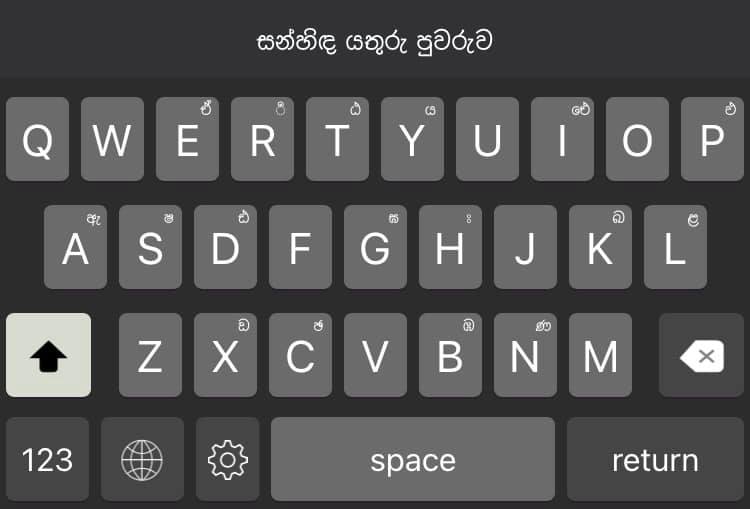
We formed a little team of four friends LiteDreamz.com to make some fun time creative apps. සන්හිඳ (Sanhinda) is the first one for us to start with. In our team I am working on iOS development. And my friend Dulan works on Android. Julian with his experience does graphic design for us. Asanka, we usually call him Lokkaiya works on Web, PHP developments. All of us together makes a nice combination to bring our little crazy ideas into public. I had an idea of making Sinhala transliteration app from past looking at Google Tranliterate & UCSC online transliterate tool and I have been using them for quite a while. iPhone had a lack of Sinhala Keyboard and also a transliterate app that makes Sinhala typing difficult on my favorite mobile phone. Therefore, We decided to make this idea live as the first step on Both iOS & Android. Sanhinda for Android was developed by Dulan and I developed the Sanhinda for iPhone.

Download Sanhinda for iPhone by Me

Download Sanhinda for Android by Dulan

avail_on_app_store

Sanhinda (සන්හිඳ) featured in iTunes Sri Lanka within 3 days of its initial release. Below is a few screenshots of it having top ranks in AppStore Sri Lanka.

#1 Free iPhone App in Sri Lanka

#1 Free iPhone App in Utilities Sri Lanka


Following is a little screen demo of සන්හිඳ for iPhone..

Few screens of the සන්හිඳ for iPhone..


Few screens of සන්හිඳ for Android..


Posted by: Tharindu | December 15, 2011

AES128 Encryption in iOS and Decryption in PHP

It was somewhat not straight forward getting this task done initially for me, but finally everything was fine with Objective-C & PHP on decrypting the text encrypted via iOS code with the help of Google & StackOverflow. So I thought of sharing successful piece of codes for iOS and PHP for this task on my blog. The problem with PHP is PHP does not support PKCS7Padding by default which is supported by iOS. So we need to unpad the encrypted text to make decryption successful at PHP code.

On Objective-C, we will extend NSData class and NSString class to have an AES128 encrypted string on iOS using categories. Basically, important AES128 Encryption code is listed below. But for easy reference, download NSData,NSString AES128 Categories from here. and add them to XCode project.

iOS Code

- (NSData *)AES128EncryptWithKey:(NSString *)key
{
// ‘key’ should be 16 bytes for AES128
char keyPtr[kCCKeySizeAES128 + 1]; // room for terminator (unused)
bzero( keyPtr, sizeof( keyPtr ) ); // fill with zeroes (for padding)

// fetch key data
[key getCString:keyPtr maxLength:sizeof( keyPtr ) encoding:NSUTF8StringEncoding];

NSUInteger dataLength = [self length];

//See the doc: For block ciphers, the output size will always be less than or
//equal to the input size plus the size of one block.
//That’s why we need to add the size of one block here
size_t bufferSize = dataLength + kCCBlockSizeAES128;
void *buffer = malloc( bufferSize );

size_t numBytesEncrypted = 0;
CCCryptorStatus cryptStatus = CCCrypt( kCCEncrypt, kCCAlgorithmAES128, kCCOptionECBMode | kCCOptionPKCS7Padding,
keyPtr, kCCKeySizeAES128,
NULL /* initialization vector (optional) */,
[self bytes], dataLength, /* input */
buffer, bufferSize, /* output */
&numBytesEncrypted );
if( cryptStatus == kCCSuccess )
{
//the returned NSData takes ownership of the buffer and will free it on deallocation
return [NSData dataWithBytesNoCopy:buffer length:numBytesEncrypted];
}

free( buffer ); //free the buffer
return nil;
}

Now add the below PHP function at your server side to decrypt the text with PHP. :)

PHP Code

function decrypt_password($pass,$key)
{

$base64encoded_ciphertext = $pass;

$res_non = mcrypt_decrypt(MCRYPT_RIJNDAEL_128, $key, base64_decode($base64encoded_ciphertext), ‘ecb’);

$decrypted = $res_non;
$dec_s2 = strlen($decrypted);

$padding = ord($decrypted[$dec_s2-1]);
$decrypted = substr($decrypted, 0, -$padding);

return  $decrypted;
}

Today, I wanted to change Company Name entry in new XCode 4.2 project file templates. If it’s not set for the project by default Organization Name appears as __MyCompanyName__.

Earlier it used to be read from either ~/Library/Preferences/com.apple.Xcode.plist file Or using Address Book entry for company under current user logged in. So I was wondering why it doesn’t appear on new files I add to the project with XCode 4.2.

defaults write com.apple.Xcode PBXCustomTemplateMacroDefinitions
-dict ORGANIZATIONNAME "CyberLMJ"


I had already added the ORGANIZATIONNAME key, but still had the default name in. Alternatively, I could have also changed the file templates in /Developer/Platforms/iPhoneOS.platform/Developer/Library/Xcode/Templates/File Templates or /Developer/Library/Xcode/Templates/File Templates. But it seem to be not really easy or useful, as I just needed to change company name entry only.

Finally, I found out there’s a very easy way hidden or unseen for me for some reason with new XCode, added :) Select the project and look for the right pane. View > Utilities > Show File Inspector [option + command + 1]. Organization entry is there available for each new project.

Posted by: Tharindu | April 5, 2011

Bloodless Medicine iPhone App (iAvoidBlood)

I started with few little iPhone apps at Silk. Blood App (simply termed) was one of iOS apps that I worked on during my stay at Silk. It’s later decided to name as iAvoidBlood to highlight its core function. This application is a collaborative educational project which promotes Bloodless Medicine. Bloodless Medicine refers to emerging clinical strategies for medical care without allogeneic blood transfusion and is said to be a well-defined area in Blood Management. The circular of information distributed with Blood and Blood Components recommends that all physicians be familiar with the alternatives that are a part of Bloodless Medicine.


Download iAvoidBlood on Apple Store

Blood App include three utilities named Evaluation (Animated Blood Calculator), eBlood Card & Blood Centers (Geo-Localization). In addition, App include detailed informative sections describing Blood (components of blood), Blood Transfusion, Transfusion Alternatives, Ethics and Glossary.

Evaluation utility – adds an animated calculation showing Final HT value calculated using patient or user’s Gender, Estimated Blood loss, Initial HT & Transfusion Threshold.

E-Blood Card – provides users to keep his preferences for accepting whole blood or its components. Users can share their e-blood card via emails.

Blood Centers – shows the nearest Blood Centers marked on a Google Map using iPhone Map Kit framework. Using Google Geo-coding API users are provided a way to search for nearest blood centers from any location. Data for the blood centers are read from silk web services. Even user could look for the route for Blood center and its details.

Transfusion Alternatives – provides comprehensive detailed section that describe the top to bottom details on Bloodless Medicine.

avail_on_app_store

Following is a quick video of the Blood App.

Following are some screen shots for the app.

I was needed to somehow add VoIP into my Level4 Project. It made me search all over Google for some existing work. And found this project Siphon that enables SIP voice calls. There are few guides on Siphon Wiki, still I was stuck with linking issues for nearly a month. After trying lots of hours I gave up all that trying to compile for iPhone 3.0. Again yesterday, I have been trying to compile free open source project Siphon to run on iPhone Simulator and iPhone all day. It was really difficult task having the Siphon team done lots of effort on making an Open Source project, still just to compile it. My lack of knowledge in C++ or C made this even harder. Finally lots of hours invested, days wasted now I have it running on my iPhone. So may be this will help some newbie on low level coding (C, C++) other than Objective-C to run this amazing app compiled on your iPod or iPhone. Having credits on your SIP account you may convert your iPod into an iPhone on WiFi.

Siphon Project on Google Code

Siphon has wiki pages saying how it could compile to iPhone OS 2.x but still it seems to be not enough and I couldn’t make it success by any means unfortunately.

Steps to follow for Newbie.

1. We need to compile and build required libraries from compiling PJSIP project first. There are few things I did wrong here. I have compiled for Device and tried to run it on Simulator without writing my own configure script. Trying to use same one on PJSIP Then I got so many linking issues that I couldn’t understand WTF is this.

2. Let’s compile PJSIP for iPhone first and build libraries required and then to Simulator as well with a more change to configure script. Before going into Siphon project.

2-1. Download PJSIP source code from here. Now it includes configure script for iPhone that you need to edit once for iPhone again for Simulator.

svn co http://svn.pjsip.org/repos/pjproject/trunk pjproject

2-2. Create a new file pjlib/include/pj/config_site.h.  Add following code into it.

#define PJ_CONFIG_IPHONE 1
#include <pj/config_site_sample.h>

2-3. If you go to pjproject folder, you will see configure-iphone script. Need to edit this to compile for your desired iPhone SDK. Open this with your favorite Text editor, mine was TextWrangler.

$ edit configure-iphone

2-4. Hard code the $DEVPATH and $IPHONESDK. So you don’t need to export those environment variables. If you not specify $IPHONESDK it will be the OS default. ex.

DEVPATH=/Developer/Platforms/iPhoneOS.platform/Developer
IPHONESDK=iPhoneOS3.0.sdk

2-5. Now you can easily build the libraries that will be stored in lib directories of folders, pjlib, pjlib-util, pjmedia, pjnath, pjsip, third_party. Check once again about your configure-iphone script for correct paths and compile and build libraries using following commands simply.

$ cd /path/to/your/pjproject/dir
$ ./configure-iphone
$ make dep && make clean && make

2-6. Now you have libraries for iPhone. Make a copy of pjproject folder and rename it to pjproject_sim. Here we are going to have our iPhone Simulator libraries built

$ cd /path/to/your/pjproject_sim/dir
$ edit configure-iphone

2-7. Hard code the $DEVPATH and $IPHONESDK. This time they should the paths for Simulator SDKs. And one more change here, that I was missing. caused all sorts of problems.

2-8. Search for 'ls -d ${SDKPATH}/usr/lib/gcc/arm-apple-darwin*' in configure script and replace it with following that way you could build correct libraries for simulator.

ls -d ${SDKPATH}/usr/lib/gcc/i686-apple-darwin*

2-9. Great now you have all libraries needed in folders, pjproject and pjproject_sim.

3. Now let’s go and checkout siphon project.

svn checkout http://siphon.googlecode.com/svn/trunk/ siphon

4. There was a compilation issue in Siphon code, that you could ignore by doing a little trick, I don’t know whether its right or wrong. But it works perfect. Otherwise, project didn’t compile for me. Open Siphon2 folder iPhone project on iPhone then go to call.m. Search for PJSIP_CRED_DATA_MJ_DIGEST and replace it with PJSIP_CRED_DATA_DIGEST.

5. Now add all the library .a files in following folders to the project. pjlib, pjlib-util, pjmedia, pjnath, pjsip, third_party.

6. Now follow the screen shots carefully. If you build for simulator use simulator library files (pjproject_sim folder) and include files to library and header search paths, other wise use libraries & include files in pjproject folder.

Make a duplicate of Debug to run in iPhone, let debug to be used by used by simulator libraries.

Let’s add Library Search Paths & Header Search Paths for siphon target. Following are examples of my locations for simulator. For device its the location to pjproject folder we built and stored our library files for Device.

Change CYDIA=0 in Preprocessor Macros

7. Add the Settings Bundle for your project as given in this following link. It works perfect then.

Siphon and Settings Bundles

8. Now you could run it on your iPhone or Simulator. Use a free SIP service to create SIP accounts to test the app. I have used, Sip2Sip

NOTES ABOUT COMPILING “PJSIP”

Following link contains very useful information updated about how to get PJSIP compiled for iOS. Please refer to the pjproject Wiki page below.

Building for Apple iPhone, iPad and iPod Touch

* IMPORTANT: I had to follow additional step to get things done for iOS Simulator. before run ./configure-iphone script

export DEVPATH=/Developer/Platforms/iPhoneSimulator.platform/Developer
export CC=$DEVPATH/usr/bin/gcc
export CFLAGS="-O2 -m32 -miphoneos-version-min=3.0" LDFLAGS="-O2 -m32"
Posted by: Tharindu | June 16, 2010

How to add Syntax Highlighting to Default Mac Terminal

I was wondering why Mac Terminal doesn’t have nice color highlighting that all other Linux based OSs have. Suddenly realized that it should be enabled with few little things to get it done on Mac OS. Follow the few steps to make it highlighted. Before it was enabled my Mac terminal didn’t look any better as my Ubuntu terminal. It was like below.

1. Create a file named .profile if it doesn’t already exists. Add the following line for that file.

alias ls='ls -G'

This will add higlighting when you use, ls commands to list files and directories, better than looking at black color all the time.

2. Do the following to add highlighting for vi editor.

:~ cd /usr/share/vim/
:~ sudo vim vimrc

Add the following code after the line with ‘set backspace=2′

set ai                  " auto indenting
set history=100         " keep 100 lines of history
set ruler               " show the cursor position
syntax on               " syntax highlighting
set hlsearch            " highlight the last searched term
filetype plugin on      " use the file type plugins

" When editing a file, always jump to the last cursor position
autocmd BufReadPost *
\ if ! exists("g:leave_my_cursor_position_alone") |
\ if line("'\"") > 0 && line ("'\"") <= line("$") |
\ exe "normal g'\"" |
\ endif |
\ endif

Save the file with Esc + :wq. Now your vi editor will show source files with some highlighting as well.

OK. Now it looks far better with some colors after this.

Posted by: Tharindu | June 9, 2010

How to resume a broken XCode Download using Safari

It has been a pain for me to make this 2.x GB XCode download successful with my slow ADSL connection. When I first tried, it was broken at over 1 GB then again I had to start over again. Finally with help of apple forums and Google I was able to stick to a successful method. In this case you have to start your download in Safari, and if its broken you can resume it anytime by following a little trick.

1. Login with iPhone Developer account in Safari Browser and start your download. In case you break the download, which would definately happen in a slow connection that takes around 10 – 12 hours to complete.

2. Once it’s broken Right click on broken download and click Show In Finder

3. You will see a file with ‘xcode_3-1.2.3_and_iphone_sdk_4x.dmg.download’ like some thing. Right click on that and click on ‘Show Package Contents’

4. Safari keeps a Info.plist file with download progress that is the one we are going to use for our purpose. Open it with a text editor and notice there’s key value pairs. Notice the key value pairs below.

<key>DownloadEntryIdentifier</key>

<string>551E5CEA-1FCF-414E-98AD-F0CFF5E05CEE</string>

<key>DownloadEntryProgressBytesSoFar</key>

<integer>192729290</integer>

5. Now you can’t resume this download, that has lots of bytes already downloaded.Do this to use the already downloaded file.

6. First start a new download again in Safari and stop it. Then again go to finder and ‘Show Package Contents’ of this new download.

7. Here also you will see an Info.plist file open it and copy the Download Entry Identifier value.

8. Hay now you are done, paste this to the old Info.plist file. Go to Safari you will see that your old download is now resuming. Saves a lot of time for you on a slow Internet Connection.

Have fun with XCode then.

I wanted to install tomcat, MySQL and then run a jsp application that connects to a MySQL DB on tomcat in Mac OS X. I have been using Mac OS for more than a year still only used it for mainly iPhone Development work. For other work on development I mostly used my Ubuntu OS at home PC. So I started all this from searching in google like ‘how to install tomcat on mac os’ and then ‘how to install mysql on mac os’ and then ‘how to set environment variables on mac os’ so and so whole day to run my app on tomcat at my MacBook. So I thought it would be useful to blog all these steps together for someone to finish this little easily. I will blog where you should refer for each step and after finishing you can come back here to see what next to do. ok great, lets just remind how i started. ha ha

1. Installing Tomcat - I have installed apache tomcat 6.0.24 exactly following same steps given in following article by Apple, eventhough it describes steps on installing 4.0.1 it is the same for later version of tomcat as well. It’s just a matter of downloading the tomcat distribution. You don’t need to complete the whole process. Just stop when you see tomcat up and running. I stopped my self at the end of ‘Starting and Stopping Tomcat’ section.

Java and Tomcat on Mac OS X

2. Install a text editor that can run from terminal (Optional). - Usually vi command is the preferred way of editing text files on Unix OSs. But for Mac OS X you should try with Text Wrangler. it has easy to install dmg file and after install Go to Menu TextWrangler -> InstallCommandLineTools… Now you can use ‘edit [filename]‘ from command line to open up text files you want to edit instead of using vi. This looks much pleasant when you edit files.

3. Setting up Environment Variables - $CATALINA_HOME, $JAVA_HOME, $ANT_HOME. To setup environment variables create a file named ‘.profile’ in your home directory or edit it if it’s already there. Open it up with TextWrangler or use vi to edit it. Now add tomcat home, java home and ant home like below.

>edit .profile
[edit the file to set values and save]
>source .profile


CATALINA_HOME=/usr/local/apache-tomcat-6.0.24
export CATALINA_HOME;
JAVA_HOME=/Library/Java/Home
export JAVA_HOME;
ANT_HOME=/usr/share/ant
export ANT_HOME;

Important points here: Usually Mac OS comes with Java and default Java Home directory is located at /Library/Java/Home. In case you want to know where your ant home is. Type command ant -diagnostics then scroll up to see where ant.jar is in command line output. You know where ant is then.

4. Installing MySQL on OS X - This is pretty easy with Mac OSX Distribution you could download at MySQL web site. You can easily install MySQL with installer and then follow the instructions in Read Me to start MySQL server to work with.

Download Mac OS X MySQL Server Distribution

Important points here: Once you setup alliances in ~/.bash_profile as in README, To setup a root password use following command mysqladmin -u root password passwd

5. Setting up tomcat to connect to MySQL - you have to add the mysql-connector jar file to library folder and also edit the context.xml file in tomcat server. Read the detailed steps in following article to understand it fully.

MySQL DBCP Example on tomcat 6

Now you can run your JSP or Servlet application without any issues on Mac OS within tomcat server with MySQL databases.

Older Posts »

Categories

Follow

Get every new post delivered to your Inbox.